
Tool guides
10 AI video tools for TikTok: viral remakes, product explainers and long-video clips
Start with a saved viral video, your own product or existing footage. Find tools for talking-head product videos, faceless channels, podcast clips and short narratives.
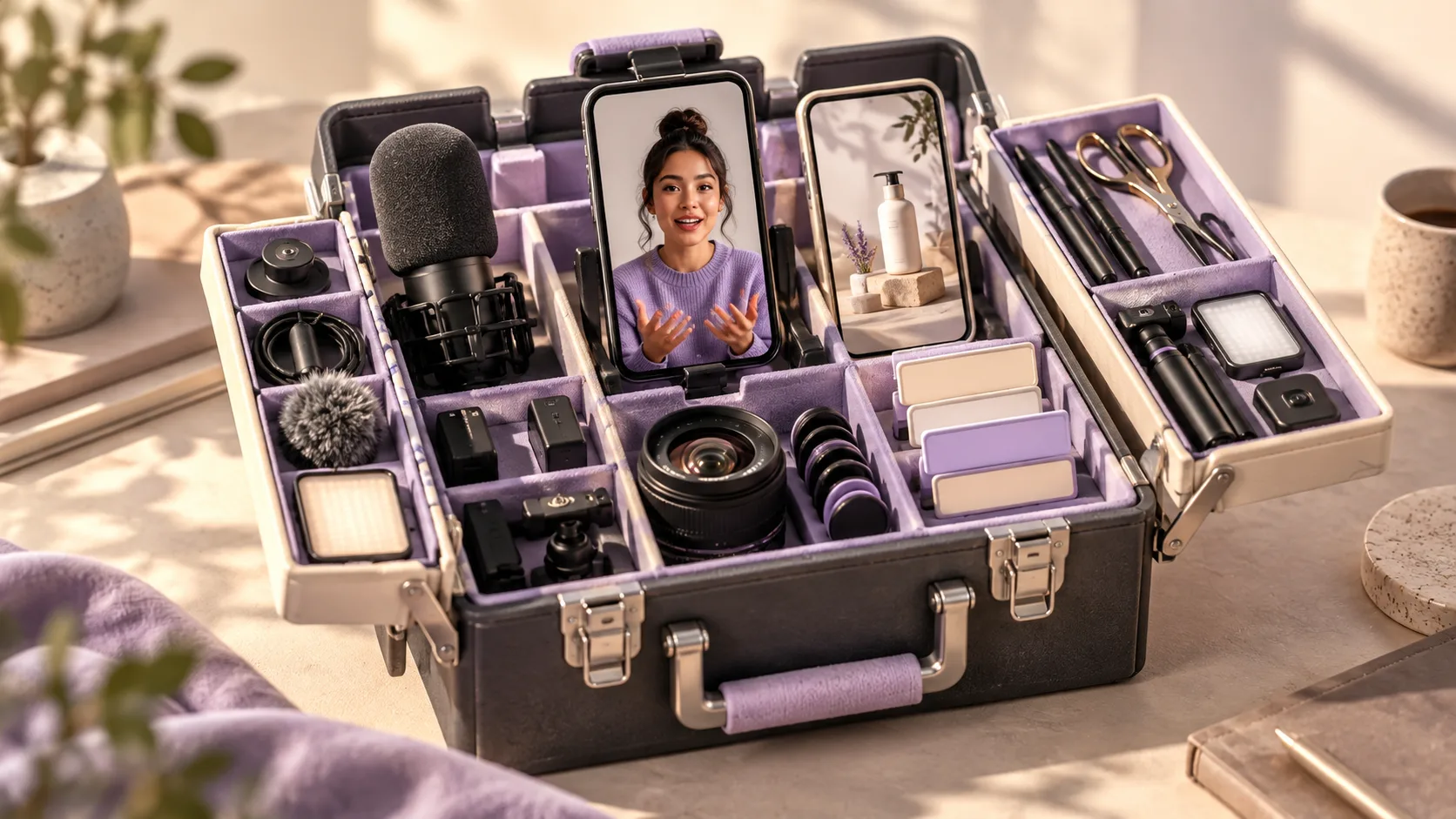
TL;DR Quick Summary
- Saved a viral TikTok video and want to remake it around your own product or theme? Start with rikoko. Its core use is viral-video remaking: creating a new video from a reference.
- For avatar-led product presentations, consider HeyGen; for creative product shots, Higgsfield. Use Invideo to assemble existing footage, or Revid for faceless educational and story videos.
- Use OpusClip to extract short clips from long videos, Descript to tighten your own talking-head recordings, and VEED to style subtitles. For stories told across multiple shots or around recurring characters, consider LTX Studio and Dreamina Octo.
You save a TikTok video that opens with melting cheese, cuts to a close-up of a burger being pressed, and only then reveals the restaurant’s name. You want one for your own restaurant. Another day, you record a ten-minute product introduction and just want to edit a publishable talking-head clip from it. AI can help with both tasks, but they call for different tools.
This article focuses on the content you actually want to post when choosing tools: replicate a viral hit, have a digital person talk about the product, add a few beautiful shots to the product, or edit pre-shot footage into a TikTok clip. Each tool has specific input, methods, and creative examples to help you find the one suitable for your next video.
First, find the video you're going to make today
| What do you want to do? | Tool to consider first | What materials to prepare | What can be made? |
|---|---|---|---|
| Turn a saved viral reference into your own video | rikoko | Reference videos, your own product images or character materials, and any shooting methods you want to keep | A short video that keeps the reference’s structure and pacing while introducing your own subject |
| Have someone appear on camera to talk about the product | HeyGen | Product selling points, a script and a chosen avatar | Avatar-led presentations, product introductions and vertical explainers |
| Reuse an eye-catching action or product shot | Higgsfield | Reference clips, product or character images | Creative shots that replace people, products, or scenes |
| Edit a collection of live-action footage into one video | Invideo | Unboxing, trials, close-ups, and other original materials | Product shorts or lifestyle videos organized around a theme |
| Create educational or storytelling content without appearing on camera | Revid | Topic, narration, or article link | Vertical video with narration, visuals, and subtitles |
| Cut short videos from podcasts and interviews | OpusClip | Full long video | Vertical clips focused on a single topic |
| Tighten a talking-head video you recorded | Descript Underlord | Raw talking-head footage, screen recordings or interviews | A short video that removes repetition and pauses while preserving your personal delivery |
| Add subtitles and visual styling to recorded footage | VEED | Videos that have already been filmed or edited | Finished films with dynamic subtitles, unified fonts, and colors |
| Short dramas with an introduction, development, and twist | LTX Studio | Story summary, characters, and scene references | A short narrative film composed of multiple consecutive shots |
| A series of stories centered around a single character | Dreamina Octo | Character illustrations, scene illustrations, and story ideas for each episode | A series of creative works from character design and storyboards to video content |
1. rikoko: remake a viral TikTok video around your own product
rikoko focuses on cloning viral videos: adapting a successful reference into a new video for your own content. Start with a reference video you've already chosen, then break down how it opens, arranges the shots, and when to showcase the product, then recreates it around your product, character, or theme.
For example, you save an iced-coffee video: it opens with a close-up of ice dropping into a glass, milk pours in slowly, and the camera finally pulls back to reveal the whole drink. You run a burger shop and want to borrow that approach: attract attention with detail, then reveal the complete product. Replace ice dropping into the glass with a beef patty landing on the griddle, the milk flowing with cheese melting, and the final drink with the whole burger. The reference supplies ideas for shots and pacing; each action still needs to be redesigned around the burger.
rikoko connects reference analysis, shot adaptation, new visual generation and editing within one project. Bring your own product images and explain what to preserve and what to replace. Review the adapted storyboard, generate the shots, then adjust subtitles, sound and sequence. “I want something like this” becomes a plan you can discuss shot by shot.
You can describe your needs like this
“Use this iced-coffee video as a reference for a 20-second vertical short for my burger shop. Keep the opening food close-up and the rhythm of three close views followed by the complete product. Use the cheeseburger image I uploaded as the subject, with actions showing meat sizzling, cheese melting and the burger being cut open. Show only the shop name at the end. Show me the storyboard first.”
It is especially useful for creators who regularly save videos in their niche and want to turn good ideas into their own content. New dishes, product demonstrations, pet stories and lifestyle shorts can all start from a reference. After the first draft, keep refining the existing project with requests such as “hold the cutting shot for one more second” or “change only the closing text.”
When using it, first install rikoko and connect AI assistants like Codex, Hermes, or Claude, then provide references and materials in the conversation; The finished video will include a workbench link for further editing. AI analysis and generation require available model services, with fees confirmed before execution. You decide which shooting method to adopt and select the final footage to publish.
2. HeyGen: present products without filming yourself every time
When selling storage boxes, kitchenware or software services, some benefits need a person to explain them. You may already have a script about why ordinary storage boxes become messy when stacked, but do not want to set up lights, record audio and appear on camera every time you change the opening. HeyGen can use an avatar for this kind of presentation.
Its Video Agent can organize a script, visuals, narration and subtitles from your idea. You can select an avatar and a vertical format, and refine the video plan through conversation before generating it. Your own product photos and videos can support the explanation. View HeyGen's production process .
For a storage-box introduction, the avatar could begin with “You keep buying more things, but your cabinet stays the same size,” then cut to your real organizing demonstration and finish by explaining dimensions and use. This suits benefit-led explanations, tutorials and frequently asked questions. Your own footage can still show actual experience, hands-on operation and product details; the avatar presentation connects them.
3. Higgsfield: Swap the action and scenes in the reference for your own creativity
Sometimes, what you lack is an opening shot: the same turning gesture, replaced by your own clothing; the same product display, replaced by your own packaging. Higgsfield can be included in the candidate list for this kind of visual creation.
Its current Genjutsu offers reference video adaptations: reusing actions, resetting characters, locations, or products, and even replacing specific elements in the frame. The platform also provides creative entry points related to advertising, special effects, and cinematic shots. View Higgsfield's video adaptation and creation portal .
For a sports-jacket styling video, use a reference clip of someone walking toward the camera and turning to show the garment. Try different settings and visual styles, then connect the selected clip to real close-ups of pockets and zippers. This helps you quickly explore other ways to film the same garment. Inspect the clothing itself when selecting results: color, fit and pattern should match the actual product.
4. Invideo: Cut unboxing, trials, and product close-ups into a short sales video
There are already twenty clips of footage on your phone: unpacking, holding in hand, putting in bags, close-up shots of details. You know each clip could be useful, but you haven't figured out how to piece them together into a single piece. Invideo's current editing capabilities are suitable for starting with this kind of material library.
After uploading footage, you can search for clips with descriptions and then request editing in natural language. It provides script and storyboard planning, multi-track timelines, and editing options to adjust multiple shots at once. View Invideo's materials and editing features .
For a portable-blender video, choose a narrow subject such as “Taking breakfast with you on the way to work.” Open with the blender cup going into a commuter bag, then show fruit being added and a close-up of the blender starting, before returning to the finished drink. Specific requests such as “find every shot of it going into a bag” and “shorten the unboxing section” make editing easier than a general request to “make it look more premium.”
5. Revid: turn a script into an educational or story video without appearing on camera
You want to create a coffee knowledge, historical story, or language learning account, willing to write content but don't want to appear on camera for now. Revid's faceless video tool can start with scripts or links, combining narration, images, and subtitles.
During production, you can choose your footage, AI scene, or motion graphics, select your voice or upload your own audio, and after generation, adjust the visuals, subtitles, and rhythm; It also provides 9:16 output for TikTok. Explore Revid’s faceless-video tool .
For example, write a short script on “Why does iced coffee get more diluted as you drink it?” Raise the question, explain the melting ice, then demonstrate coffee ice cubes as an alternative. Match each narration line to a clear visual; this communicates more than filling the video with generic coffee images. For a recurring series, keep a consistent delivery and subtitle style, and answer one question per video.
6. OpusClip: Breaks down one-hour podcasts into standalone TikTok clips
After recording an interview, the hardest part is often reviewing it: which story stands on its own, and which answer is worth starting with? OpusClip's long video clipping feature helps you find candidate clips first, then switch to portrait mode, add subtitles, and adjust the view. View OpusClip's slicing and editing features .
Suppose you interview a friend who runs a café, covering location, renovation and hiring. Select a segment about “the most useless equipment I bought before opening,” so viewers understand the topic from the first sentence and then hear the reason and outcome. The clip must make sense by itself. It should not begin with “so I returned it” while leaving what was returned, and why, in the long video.
It suits accounts that regularly produce podcasts, livestream recordings, courses or interviews. Record the full content, then select topics that work independently. OpusClip also offers AI Producer for raw talking-head footage. If the current task is simply to find extracts from a long program, start with its clipping feature.
7. Descript Underlord: tighten your talking-head video by editing the transcript
You record five minutes to camera but only want to communicate three things, with repeated takes, pauses and digressions in between. Descript’s text-based editing suits talking-head footage where the content is already recorded but needs tightening.
Edit against the transcript, ask Underlord to help refine it, then use tools for removing filler words, enhancing audio and extracting short clips. See Descript Underlord .
When making a review of camera use, first keep in the text "Why did I change lenses?", "What is the difference in actual shots?", and "Who is suitable for purchase", then delete the two repeated openings. Then go back to the video and listen once more, keeping the necessary pauses. The difference between it and OpusClip is here: if you want to find the best segments in a long video, you can start with OpusClip; If you already know what you want to say and want to refine your expression, you can start with Descript.
8. VEED: Add clear, eye-catching subtitles to videos you've already shot
A tasting or unboxing video has already been edited; next is the final layer of packaging: subtitles keep pace with speech, key words are more prominent, and several videos appear to belong to the same account. VEED's subtitle and browser editing tools are suitable for this step.
It can automatically generate subtitles, adjust fonts, colors, backgrounds, and animations, support keyword highlighting, and export subtitle files or videos with subtitles. View VEED's subtitle styles and editing methods .
For example, in a video about "Is the lunchbox leaking?" you can make "Turn it upside down," "put it in the bag," and "open to check" as clear subtitle highlights. When the screen is showing the sealing ring, don't overshadow the product with text. Fix a set of font size, color, and punctuation habits, so you'll have a style you can use next time you make the same video series.
9. LTX Studio: Turns a twist idea into a multi-shot short play
You want to make a short drama about the "robot's first time going to a convenience store": it uses a shopping basket as a hat, carefully studies the freezer, and finally buys a battery. This idea requires multiple shots to explain the action and humor; generating a single beautiful scene alone is not enough.
LTX Studio supports generating scenes and storyboards from scripts, organizing projects by setting characters, objects, and locations, and also provides control for camera movement, keyframes, and reference images. View LTX Studio's storyboard and camera tools .
When creating, you can first break the story into four scenes: entering a store, misusing shopping baskets, picking out products, and showing a battery. First, let the audience understand the actions, then decide where to add a close-up expression. It's suitable for plot accounts willing to spend time refining characters and narratives; Characters' clothes, items in hand, and actions before and after should be viewed together in the entire video.
10. Dreamina Octo: Turning story ideas into a series of videos around the same character
If you want to make a series like "Orange Cat Opens a Breakfast Shop," you already have main character images, shop color schemes, and ideas for several episodes. Dreamina Octo's canvas-like creation lets you put these references and storyboards together, adjusting as you watch.
According to its official description, Octo organizes the script, characters, scenes and generated assets on one canvas. It supports generating video by scene, then assembling the results and adding sound on a timeline. View Dreamina Octo's creative process .
The first episode might show the orange cat ruining its first fried egg. Establish the apron, kitchen and frying pan, then design three actions: cracking the egg, failing to flip it and serving the result. Reuse the same character and scene references in the next episode. Compared with remaking an existing viral video, this approach better suits someone who already has an original character and wants to gradually build an ongoing story world.
The next video starts with the material you already have
If you want to make a video tonight, first bring out the most complete materials you have: references for your collection, a written draft, or a video you've already shot. The choice of tools will be much clearer.
- There's a viral hit I want to reproduce: Use rikoko to break down the opening, shots, and pacing, add your own merchandise or characters, and first decide on the adaptation storyboard. If you mainly want to change the characters, objects, or action in a segment, you can also compare Higgsfield's reference adaptations.
- Selling points, drafts, but not filmed yet: Consider HeyGen when you need an on-screen presenter, or Revid for narration with visuals without appearing on camera yourself.
- A lot of content has already been recorded: Use OpusClip to find extracts in long programs, Descript to refine talking-head delivery, and Invideo to assemble multiple live-action clips. Use VEED when the final step is subtitle styling.
- Characters, Stories: First, arrange the shots in LTX Studio or Dreamina Octo, make sure the audience can understand the plot, then proceed with each segment.
Before posting, watch the whole video on your phone. Does the first sentence reach the subject? Is the product clearly visible? Do subtitles obscure important actions? Does the ending show the outcome? Complete this video first, then try a different opening in the next one. For someone running a channel, repeatedly using their own footage and revising their own content is what makes the process part of everyday production.
Keep reading
Three AI video workflows compared: MCP, Agents and Skills
Compare how Agents, Skills and MCP fit into video production, with a rikoko example that adapts a reference ad into a cold brew coffee campaign.
13 video analysis models: Gemini leads the cited video understanding benchmarks
Gemini 4 Argon scores highest in the benchmarks cited here. Compare frame-based analysis with GPT and Claude, specialist models for events and retrieval, and rikoko's Gemini analysis workflow.

AI video scripts and storyboards: narrative, shot design and prompts
A five-step guide from creative brief and audiovisual script to storyboard and generation prompts, using a 30-second product video with six complete shot examples and review criteria.
Translated from our October 2026 editorial drafts. Original authors, source dates and references are preserved; prices and rankings reflect the cited editions.